
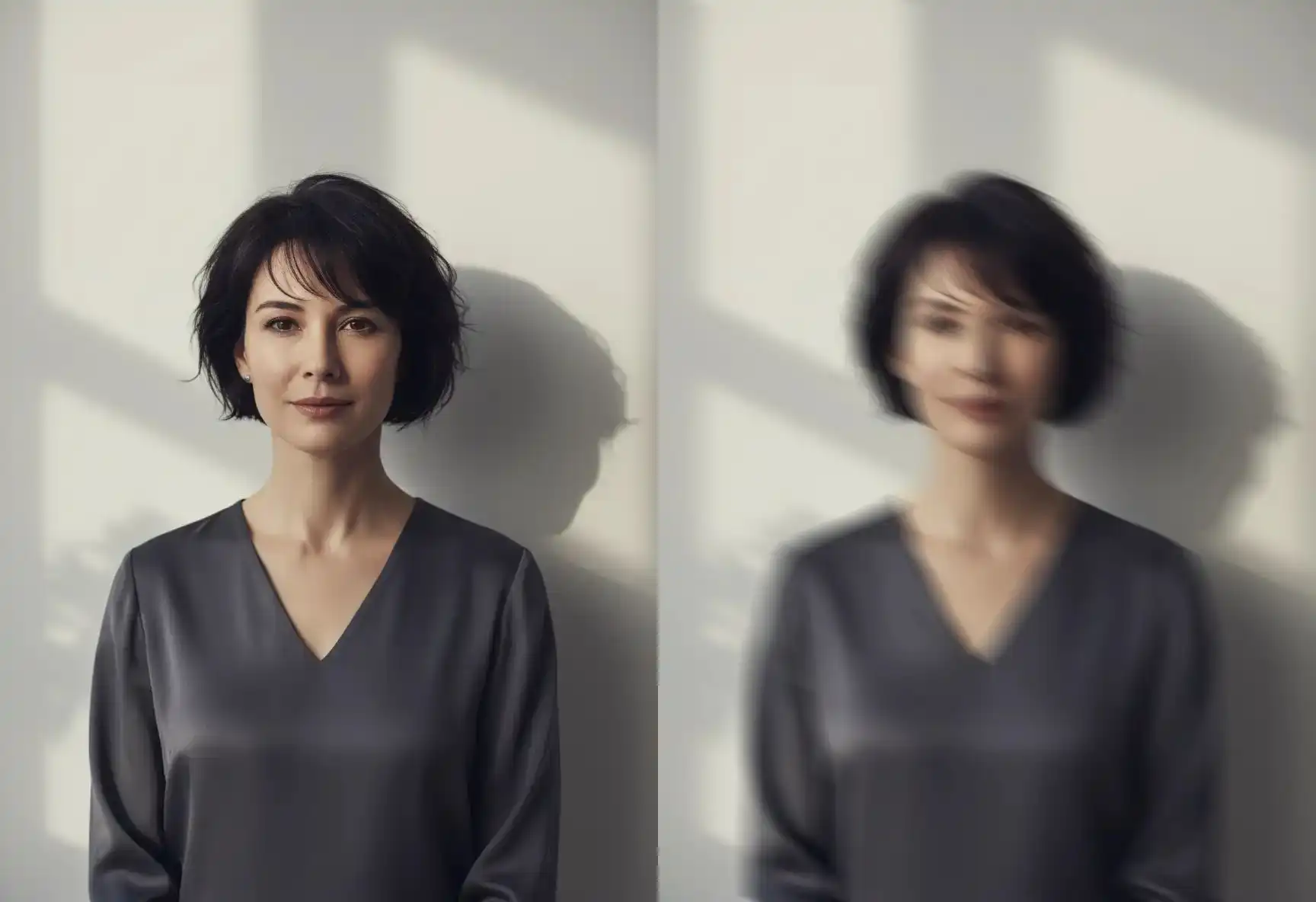
Direction‑Based Blur Controls
- •Angle (0‑360°): Set the exact direction of the motion effect. *Tip: 0° = right, 90° = down, 180° = left, 270° = up.*
- •Distance (1‑100px): Control the length and intensity of the blur trail.

Real‑Time Visual Feedback
- •Interactive Slider Previews: See changes live as you adjust settings—no guessing, no waiting.
- •Direction Guide: Clear on‑screen references help you visualize the blur angle before applying.
Why the Motion Blur Tool is Different
True Directional Motion Blur Control
Precisely orient your motion blur along any angle for realistic motion simulation.
Live Preview Workflow
Adjust motion blur tool sliders and see the effect update instantly, enabling fast creative iteration.
Artistic & Practical Flexibility
Use the motion blur tool to create everything from subtle background movement to bold, stylized streaks.
100% Browser‑Based
Apply high‑quality motion blur effects without uploading or leaving your tab.
The Motion Blur Tool is Perfect For
•Simulating motion blur in product shots, car photos, or sports imagery
•Adding energy and flow with the motion blur tool to illustrations, banners, or social media graphics
•Creating dynamic motion blur backgrounds or overlays for text and UI elements
•Enhancing action scenes or emphasizing direction in visual storytelling using the motion blur tool
Motion Blur Tool: FAQ
What is the Motion Blur Tool and what does it do?
The Motion Blur Tool is a creative editing feature that lets you apply directional blur effects to simulate movement in static images. By adjusting angle and distance parameters, you can create everything from subtle motion trails to dramatic speed effects—perfect for adding energy and dynamism to product shots, sports photography, or artistic compositions.
How does the Motion Blur Tool differ from other blur effects?
Unlike standard blur tools that create uniform softening, Motion Blur applies directional streaks following a specific path you define. This allows you to simulate realistic movement in any direction, making it ideal for creating action effects, emphasizing motion, or adding artistic flair to otherwise static scenes.
What controls does the Motion Blur Tool offer?
The tool provides two key adjustable parameters:
• Angle (0-360°): Sets the direction of motion (0°=right, 90°=down, 180°=left, 270°=up)
• Distance (1-100px): Controls the length and intensity of the blur trail
These sliders offer real-time previews so you can see exactly how your adjustments affect the image.
How do I create realistic motion effects with this tool?
For convincing motion simulation:
1. Identify the natural direction of movement in your scene
2. Set the Angle slider to match this direction (e.g., 15° for a car moving slightly upward)
3. Adjust the Distance slider based on desired speed (higher values = faster apparent motion)
4. Use the live preview to fine-tune until the effect looks natural
What are the practical applications of Motion Blur?
This Motion Blur Tool is perfect for:
• Enhancing product photography to suggest speed or action
• Adding dynamic energy to sports and action shots
• Creating artistic visual effects for social media content
• Simulating movement in architectural or landscape photography
• Developing eye-catching graphics and banner designs
Can Motion Blur be combined with other editing tools?
Yes! While the Motion Blur Tool operates independently, you can use it as part of a complete editing workflow. Process your image with Motion Blur first, export the result, then re-upload it to apply additional effects using our other tools like Selective Blur or Pixelate Blur for comprehensive image enhancement.
Does the Motion Blur Tool support different image formats?
The Motion Blur Tool works seamlessly with all supported formats (JPG, PNG, WebP) and maintains image quality throughout the editing process. All processing occurs locally in your browser for maximum privacy and speed.
Is there a learning curve to using the Motion Blur Tool?
Not at all. The intuitive slider controls with real-time preview make it easy to experiment and achieve professional results quickly. Tooltips and visual guides help you understand how each parameter affects your image, eliminating guesswork.
How does the Motion Blur Tool protect my privacy?
Like all our editing features, the Motion Blur Tool processes images 100% in your browser—no data is uploaded to external servers. You maintain complete control over your images throughout the editing process, with optional EXIF metadata removal available during export.
Is the Motion Blur Tool free to use?
Yes, the Motion Blur Tool is completely free with no usage limits, watermarks, or hidden fees. You can create unlimited motion blur effects without any subscription requirements.